
“#How to schedule messages on Slack”
Sending a Slack message to a colleague in a different time zone is tricky business. You don’t want to disturb them during their late hours, but you wouldn’t want them to miss your message amongst others.
Thankfully, the work messaging platform has been rolling out a feature called “scheduled messages.” Here’s how you can use it:
- Open Slack on your desktop.
- Search for the person or channel you want to send a message to.
- Type in your message, and click on the little arrow beside the send button.
- Select the predefined time slot, or choose your own custom time to send this message.
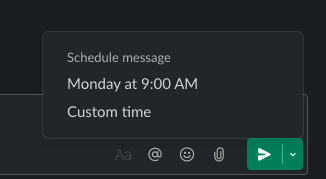
If you’re using slack on iOS or Android, long press the send button to bring up the scheduling options for the message. The rest of the procedure remains the same.
This feature is great if you work in a remote team and have colleagues scattered all across the globe.
While you’re at it, you might want to check out our guide for scheduling an email on Gmail. Now, this is some great time management.
If you liked the article, do not forget to share it with your friends. Follow us on Google News too, click on the star and choose us from your favorites.
For forums sites go to Forum.BuradaBiliyorum.Com
If you want to read more like this article, you can visit our Technology category.