“#How to prevent unwanted Mac apps from launching at startup”
Every time I restart my Mac, some apps that I rarely use launch automatically, and I have to wait for a bit longer to get started with whatever I wanted to do.
So, I decided to kick those apps out of the startup process to speed things up. Here’s how you can do it tpp:
- Open System Preferences on your Mac. You can do this through Finder (Cmd + Space) or by clicking on the Apple logo on the menu bar and selecting the System Preferences option.
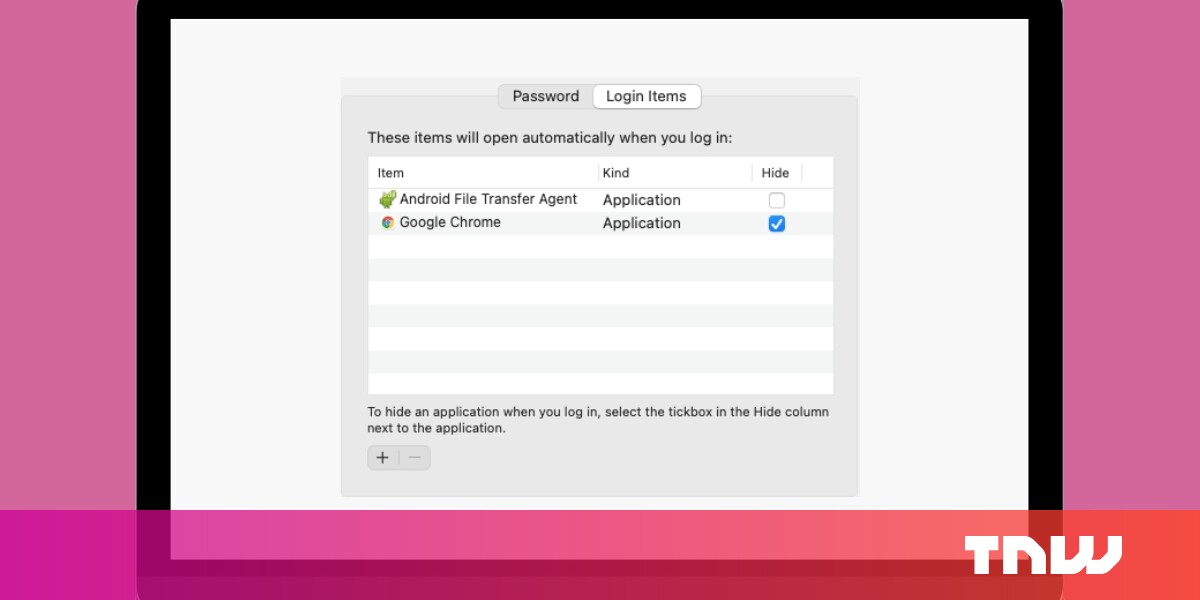
- Go to Users and Groups > Login items.
- You can remove unwanted apps by selecting them and clicking on the “— ” icon.
- If you want an app to start upon login but not show up on the screen, you can check the hide box against it.
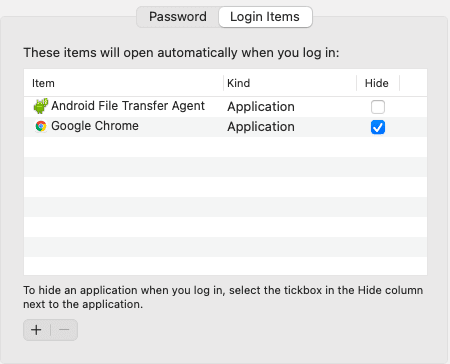
After making these changes, the next time your restart your system, those apps won’t show up. That means you can start doing the stuff that you want to do in a shorter time.
While you’re at it, you might want to check our guide for setting up a shutdown timer for your Mac.
If you liked the article, do not forget to share it with your friends. Follow us on Google News too, click on the star and choose us from your favorites.
For forums sites go to Forum.BuradaBiliyorum.Com
If you want to read more like this article, you can visit our Technology category.